Docker – building images

Everything you do with Docker concern containers and containers are built from images. While there are plenty of cases where prebuilt images are useful (MySql for instance) most of the time you’ll want to create your own image. You can start from scratch if you wish, but most of the time you’ll want build on top of an existing image. For example, most of the work I do starts with Microsoft’s Asp.Net Core images.

Pulling images

Images come from Docker registries and Docker will pull them. Once an image has been pulled it will be stored locally on your machine. If you are building a new container and the image is already on your machine Docker will use it. If the image isn’t present Docker will locate the image in a registry (Docker Hub by default) and download it.

You can manually pull images using the Docker Pull command. This will cause Docker to download an image from Docker Hub (or another configured registry) and store it locally.

docker pull jakewatkins/ancbuildenv

This will cause Docker to download my customized Asp.Net build image. If I update the image and you want the old one you can add a tag to the image name:

docker pull jakewatkins/ancbuildenv:1.0

If you don’t add the tag (the stuff after the full colon) Docker assumes you want the latest version (who wouldn’t want the latest and greatest? Cobol and FORTRAN programmers, that’s who).

Building images

Building your custom image is a little more involved. You first have to create a docker file which is a script with instructions that tells docker how to build the image. Once you have your docker file you have to actually build it.

Building your docker file is done as follows:

docker build . -t jakewatkins/example1 -f DockerFile

I jumped us forward over some boring stuff, so let me explain. The -t flag means “tag” which is the name we are giving our image. The tag I’m using starts with my docker account name and then after the slash is the actual name for the image. I could have just tagged the image as “example1” but then if I wanted to push it to a registry (Docker Hub) I would have to tag the image with my account name anyway. I’m lazy so I just go ahead and tag images the way I will push them in case I decide to push them. Less work, laziness preserved. The -f isn’t absolutely necessary if you name your doker file “DockerFile”, but I occasionally will use different names. Later I’ll explain how to do multistage builds and I will give those docker files a name like “DockerFile-selfcontained”. If you don’t provide the -f flag Docker will look for a file called “DockerFile”.

Now for the fun part, how to write your docker file. Below is an example of a typical DockerFile.

#
# ExampleApp
#
FROM microsoft/aspnetcore:1.1.2

COPY ./out /app

WORKDIR /app

EXPOSE 80/tcp

ENTRYPOINT ["dotnet", "ExampleApp.dll"]

This is easy and you generally won’t get much more complicated than this. What does it all mean?

#

The hash or pound sign is for leaving comments and telling people lies.

FROM

The FROM directive tells Docker which image you are starting with to build your image. You don’t have to include a FROM, but without it you are building on a very stripped-down Linux distribution. Assume that you will have to install everything yourself if you start from scratch. Save yourself the time and start with a base image.

WORKDIR

WORKDIR tells Docker where you are working. If the directory you specify doesn’t exist it will create it. You can think of WORKDIR as doing an mkdir and cd in to the directory you want. That directory becomes your working directory for everything that follows.

COPY

COPY will copy files from your local file system in to the image’s filesystem. If the destination directory doesn’t exist it will be created for you.

RUN

RUN will execute commands inside the image. A common RUN sequence in a docker file is

RUN apt-get update

This will update the packages already installed in the image to make sure you have the latest patches.

VOLUME

VOLUME allows you to specify mount points where Docker can attach persistent storage to your image. When a container is shutdown or if it crashes any changes in the container are lost. If you are running a database server in a container and you shut down the container any data in the database will be lost. Using persistent volumes gives the container a place to store data.

EXPOSE

EXPOSE tells Docker which ports in the container should be exposed so network traffic from the host computer can be routed to the container. The -p flag in the Docker Run command on the command line not in the DockerFile) allows you to specify how to route the traffic.

ENTRYPOINT

ENTRYPOINT tells Docker what should be run when the container is started. In the example, we are running dotnet and telling it to use exampleapp3.dll.

There is more you can do in the DockerFile but this will get you started and covers 80% of what you need. You can ship really useful images just using the information above. Keep going though because a little more knowledge will help make your life easier (i.e. help you be as lazy as possible too).

All of that said, I do recommend spending some quality time reading the DockerFile reference and Best practices for writing DockerFiles. It is time well spent.

Multistage builds

The previous example demonstrated a usual build for Docker. You start with an image, copy some files in, set a few configuration options and call it a day. What I don’t like about this is that you have to first compile your application on and then copy the output in to the image. What if your stuff was updated recently but the base image you are working with is using an older version? What if one of the people on your team is doing it a little differently? You’ll end up working harder trying to figure out why the application works in one environment but not another. We’re back to “it works on my machine”. We can use multistage builds to do away with that. This is one of the reasons why I have my custom build image. I added the git client to Microsoft’s image so when I build an image my Docker file actually gets the source code for Git Hub and builds that inside the Microsoft Asp.Net Core Build image and then copies the output in to the Asp.Net Core image which serves as the actual runtime image we’ll use to push to other environments. Here is an example where I’m building a sample application whose source code is pulled from Git Hub during the build process.

#
# ancSample
#
# stage 1 - build the solution
FROM jakewatkins/ancbuildenv AS builder

WORKDIR /source

# Pull source code from Git repository

RUN git clone https://github.com/jakewatkins/ancSample.git /source
# restore the solution's packages

RUN dotnet restore
#build the solution
RUN dotnet publish --output /app/ --configuration Release

# stage 2 - build the container image
FROM microsoft/aspnetcore:1.1.2

WORKDIR /app
COPY --from=builder /app .

EXPOSE 80/tcp
# Set the image entry point
ENTRYPOINT ["dotnet", "/app/ancSample.dll"]

You can download the entire project from my github here: https://github.com/jakewatkins/ancSample

Notice in stage 1 that the FROM statement added an AS at the end. The builder is used in the copy statement in stage 2 telling Docker where to find the files we want to copy. The other thing to notice is that there are a lot more RUN statements here. There are a few tricks that could be added to help optimize our image size. For example it would probably be good to chain the two dotnet statements together using the shell “&&” operator. However, I’m also learning this stuff so bear with me.

There are other tricks you can use in your Docker file. For example you can parameterize docker files so you can pass in parameters. I plan to refactor the above Docker file so I can pass in the version of Asp.Net Core that I want to use and the url for the Git Hub repository. That way I won’t have to write a new Docker file for each project I start.

Push images

Now that we have our image we will want to push it to a registry. I recommend that you create an account on Docker Hub to store images. The only downside of the free Docker Hub account is that you can only have 1 private registry.

To push an image to Docker Hub, you first create the registry on their web-site. The cleverly hidden blue button at on the top right will get the job done for you. Name the registry to match the tag you used to create your image. This means you need to have your account name followed by a slash and then the image name. Like this:

Jakewatkins/ancsample

Image names must be all lowercase but you can use dashes and underscores to make them readable. If you didn’t tag your image during the build process you’ll have to do it now. If you gave your image the name testimage and your account name is ‘spacecommando’ and you want to name the image in the registry ‘mysuperimage’ the command will look like this:

docker tag testimage spacecommando/mysuperimage

Once you have your image tagged correctly you can push it:

docker push spacecommando/mysuperimage

You can hit refresh and see you image on Docker Hub.

How do I setup my own registry for images?

You can setup your own registry. Docker provides a container to do it. All you do is run it! However, you will want to do some configuration to setup persistent storage.

You can read about it here: Deploy a registry server

Their instructions are good and I’m too lazy to write a different version of them.

Setting up my own base images

As I’ve already stated I’ve started creating my own base images to make it easier for me to get work done. You should do the same. In my case all I did was take Microsoft’s image and add the git client to it. I can see adding other packages as well down the road (npm and bower to name a few) but for now the image is doing what I want.

The docker build file looks like this:

#
# Jake's ASP.NET Core Build image
# This image starts with Microsoft's ASP.NET Core Build image which already
# has the .net tools pre-loaded so projects can be built inside the image
# build process.  This creates an environment where everybody builds the
# project the same way.  On to this git has been added so the build process can
# pull the project source code from a git repository further decouples
# developer workstations from the build process.
# this can also allow the DockerFile to be used directly by OpenShift in a
# CI/CD.
#

FROM microsoft/aspnetcore-build

#Add git to the image

RUN apt-get update && apt-get install -y git

#

That’s it. The comment header is longer than the actual build script! If you’re as lazy as me, you can grab this from my git hub here: https://github.com/jakewatkins/ancbuildenv

With this image you can setup your development work flow so that once you’re satisfied with your code, you push it to GIT and then kick off a build and run tests. In a future post we’ll use this to setup a CI/CD pipeline in different environment (I want to do OpenShift first).

Conclusion

I’ve covered the barest sliver of what you can do with a Docker file and Docker images. In my next post I’ll take this a step further to start building an actual application and start introducing docker-compose to orchestration containers so they can work together.

Containerization 101 – OpenShift

What is OpenShift?

OpenShift builds on top of Docker by providing tools to help orchestration of containers, scaling applications and managing containers. Web scale applications become very complex and even with the efficiencies of containers additional hardware will be needed for scaling. OpenShift helps make it possible to scale containers across multiple hosts. OpenShift also provides a nice CI/CD system whereby each time you commit code to a git repository OpenShift will perform a build and deployment cycle for your application.

What makes OpenShift Important?

Docker provides a great tool for an individual developer to work in isolation. OpenShift provides additional capabilities that it easier for a team to work together. Additionally, Docker doesn’t provide much in the way of management tooling to make Docker ready to be run in a production environment. OpenShift fills that gap.

Over the next few weeks I have several posts about Docker and OpenShift planned.  My goal is writing these is to lock in what I’ve learned.  Along the way I’m building a lot of sample applications, POCs, and demos.

Containerization 101 – Docker

What are containers?

In very simple terms, Containers are a mechanism for deploying applications. A container will hold an application’s files, libraries, and other dependencies that it needs to execute. Containers isolate applications so that they cannot interfere with other applications and they cannot be interfered with either.

Containers can be thought of as virtual machines. A virtual machine is complete deployment of a computer. It will have a hyper-visor or virtualization layer that simulates a real computer, a complete operating system and then the applications it is running. A container on the other hand only has the resources necessary to run the application it is hosting. It uses the host systems operating system and other resources. By sharing the operating system, containers are much less resource intensive and start more quickly.

Docker is the main container service in use. It works on all the major operating systems and supports both Linux and Windows containers. However, Linux containers are more mature and have broader community support. Docker containers are also supported by major cloud services such as Azure and AWS.

In addition to isolating applications running on a host computer, Docker also provides software defined networks so containers running on a host can communicate without being exposed to the wider network. Docker also provides persistent storage for data created by containers. This makes it possible to host applications like database servers in containers.

What is important about containers?

Containers are important because they are less resource intensive than virtual machines. As such they start up faster and more can be hosted on a single host. It is not uncommon for Docker to be run inside a virtual machine.

Because containers use fewer resources it is easier to have the same execution environment at all stages. The containers that are run in development are the same containers that are used for testing and then released to staging and finally production. It is realistic to create an environment where “it works on my machine” means it works everywhere.

Containers also make it possible to migrate an application to the cloud without significant effort. As previously discussed, A developer creates and works with container images in the development environment. At some point the container images are ‘lifted’ to QA where testing is performed to identify defects. At some point the container images are again lifted to staging and eventually production. An organization could initially choose to run the application in their own data center but at some point could decide to again lift the application to the cloud. If the application is self-contained in its own group, or swarm, of containers then the application won’t even require configuration changes when its lifted to the cloud. If the application is using external resources, the organization’s SAP system for instance, then things like network access will have to be configured.

What is docker?

Docker is an open source project that has standardized containers. The idea of containers is not new, the idea goes back to how mainframes work. Linux introduced containers but it didn’t offer an easy way to create containers. That is where Docker came in.

In Docker containers are created from images. Images are representations of the file system (like a zip file) containing only the files specific to the application that will be run in the container. This means that if there are files in /bin/ and /tmp/wwwroot then the image will have those just those files. The container is a running instance of the image. A single docker host can run as many containers as it has memory and CPU to handle.

Going beyond containers Docker offers stacks which are groups of containers that are related. For instance, you can have one container that has a web-site and another container that has a database server. The stack provides docker the information it needs to deploy the containers together so that they will work together. The stack’s information will provide networking and volume information in addition to the image information.

Docker also provides the tools needed to build container images from scratch or from other container images. As an example, as a Microsoft stack developer I use Asp.net Core to build applications. Microsoft provides a container for compiling Asp.Net Core applications inside a container, I’ve built my own custom version of their image that adds a few additional tools that I use as a part of my build process.

Failing to mention the Docker Hub would be a mistake. As mentioned I have created my own image based on Microsoft’s image. The Microsoft image is distributed through the Docker Hub. You can search the hub and find thousands of images contributed by other companies and individual developers. You can sign up for your own account free of charge and contribute images to the community as well.


Investing in yourself

My focus, from a technology perspective, is on containerization (Docker & OpenShift). I believe that the best combining a technology with something else. It’s like the start-up pitch “Uber & X” where you get “Uber for pets” or something like that (hopefully more useful). In my case the other thing I’m looking at is blockchain.

I realize “The Blockchain” is a technology, but really plays in to the business side of things. How the blazes are we going to do this stuff and what direction should I go? If this was 2009 it would be all about BitCoin mining, but that ship has sailed. Unless you want to invest a million dollars in a mining operation I think you’re wasting your time. I think the applications of the blockchain outside of money are where the action is going to be. What new businesses can we enable because of the blockchain? Can I change my own business as a free-lance software developer because of the blockchain?

Once thing about this does give me pause. I read Satoshi Nakamoto’s paper “Bitcoin: A Peer-to-Peer Electronic Cash System” and I’m a bit dizzy. How the blazes did that unintelligible bit of writing create all of this? The paper is far from clear and leaves out a lot of critical information.

This is why I call this investing. It is not without risk. I’m investing my time and effort in to understand this with the expectations that I’ll profit. A clearer more easily understood paper would mean less effort on my part. Instead I’ll have to do more research. That increases risk and eats up more time….

Docker Cheat Sheet

The docker cheat sheet is just meant to be a list of commands that I’ve found useful when working with Docker. This is provided with little in the way of explanation or instruction. I’ll be providing the details in articles that will follow.


Build an image

docker build . -t [accountname/imagename] -f [dockerfile name]

example

docker build . -t jakewatkins/exampleapp0831 -f dockerfile.standalone


Create a container

docker create -p [port mapping] –name [container name] [image name]

Example

docker create -p 3000:80 –name testcontainer jakewatkins/exampleapp0831


Start a container

docker start [container name]

Example

docker start testcontainer


Just run the container

docker run -p [port mapping] –name [container name] [image name]

Example

docker run -p 3000:80 –name testcontainer jakewatkins/exampleapp0831


Get the logs from a running container

docker logs [container name]

Example

docker logs testcontainer


Run an image, give me a shell and then remove the container when I exit:

docker run -it –rm [image name]

Example

Docker run -it –rm jakewatkins/example0831

Containerization

I’m working on a series of articles about Containerization. For the past few months I’ve been having a blast playing with Docker and OpenShift. They’re very cool technologies but the documentation around them is rather mixed. With this series I hope to provide a clear direction for other people adopting this technology and flatten out the learning curve as much as possible.

Everything I write will be from my point of view and hands on experience. This means that all work is from the point of view of a Microsoft centric developer. My workstation runs Windows 10 pro, I use Visual Studio 2017 and when coding I target the .NET framework (.NET Core in this case).

I think this will be valuable because most of the voices I’m seeing in this space are coming from the Open Source community. However, today I think the distinction between being a Microsoft developer and an Open Source developer is meaningless. I wrote Node.js and use a lot of Open Source tooling. I even run Linux (RHEL). So perhaps my earlier Microsoft warning is meaningless.

Regardless – if you have any questions, please let me know and I’ll do my best to get them answered.

Improving my blog

I’m making an effort to post more regularly. However, before I really get going I need to clean up a few things in the posts I’m creating. In particular I want to stop posting pictures of source code. It drives me nuts. On one hand it looks good, but you my reader can’t do anything with it. In order to work with the code you have to download the code from my github repository.

To fix this I’m playing around to see what I need to do. The first thing is that I can wrap code in [code] … [/code] tags which does most of the work. However, I use Microsoft Word to compose my posts. If I paste source code in to Word and use the [code] tags you get something like this:


<span style="color:blue;font-family:Consolas;font-size:9pt;">public<span style="color:black;">
				<span style="color:blue;">static<span style="color:black;">
						<span style="color:blue;">void<span style="color:black;"> Main(<span style="color:blue;">string<span style="color:black;">[] args)
</span></span></span></span></span></span></span></span>

<span style="color:black;font-family:Consolas;font-size:9pt;">        {
</span>

<span style="color:black;font-family:Consolas;font-size:9pt;">
			<span style="color:blue;">var<span style="color:black;"> host = <span style="color:blue;">new<span style="color:black;">
							<span style="color:#2b91af;">WebHostBuilder<span style="color:black;">()
</span></span></span></span></span></span></span>

<span style="color:black;font-family:Consolas;font-size:9pt;">                .UseKestrel()
</span>

<span style="color:black;font-family:Consolas;font-size:9pt;">                .UseContentRoot(<span style="color:#2b91af;">Directory<span style="color:black;">.GetCurrentDirectory())
</span></span></span>

<span style="color:black;font-family:Consolas;font-size:9pt;">                .UseStartup<<span style="color:#2b91af;">Startup<span style="color:black;">>()
</span></span></span>

<span style="color:black;font-family:Consolas;font-size:9pt;">                .UseApplicationInsights()
</span>

<span style="color:black;font-family:Consolas;font-size:9pt;">                .Build();
</span>

<span style="color:black;font-family:Consolas;font-size:9pt;">            host.Run();
</span>

<span style="color:black;font-family:Consolas;font-size:9pt;">        }</span>

You’re better off if I just post a picture. So this means I’ll have a slightly more complex workflow than I want, but it will produce a better quality product. Eventually I’ll figure out a way to automate it. What I plan to do is just leave annotations in my post. They’ll look like:

[code language=”csharp”]

CoreTestApp/program.cs:12-22

[/code]

I’ll post the article to the drafts folder on WordPress and then add the source code manually in WordPress’s editor. Done that way the code looks like this:

public static void Main(string[] args)
{

var host = new WebHostBuilder()
.UseKestrel()
.UseContentRoot(Directory.GetCurrentDirectory())
.UseStartup<Startup>()
.UseApplicationInsights()
.Build();

host.Run();
}

Hopefully this will immediately yield a better article for my readers. And later I’ll figure out how to automate the process so I can just publish in one step without any manual interventions.

Learning Gulp

Overview

I’m in a learning mode picking up a lot of the ‘new’ stuff I have missed over the past few years.  One area is all the new tooling like bower, yeoman, gulp and so.  To a degree I’m skeptical that I need this stuff.  I like writing PowerShell scripts or MSBuild scripts for most tasks that need to be automated.  All the same: no reason not to at least look.

You can download all of the files from here

What is Gulp?

Gulp is described as a JavaScript task runner.  What that really means is that they’ve build a tool on top of node.js that has plug-ins available that will allow you to work with files and do things to them.  It also includes a file watcher that will run scripts in response to changes to the files it is watching.

The idea behind Gulp is to provide a build for your website.  HTML, JavaScript and CSS on their own don’t require anything to be built, but if you are using any of the languages built on top of them (LESS, SASS, etc.) then you need something to ‘compile’ the file and output your CSS or JavaScript.  You also might what your files minified which requires some processing.

In my case I use Visual Studio which handles nearly all this stuff for me.  But not everybody has such an awesome tool at their disposal.

Get it setup so you can run it from PowerShell

Before going further I’ll point out that none of this is strictly necessary.  Most of the time I work from Visual Studio which will process gulp files without any help.  You could also save yourself some trouble and just fire up the old windows command prompt and live on happily.  However, I’m all about automation.  What if I want to use gulp as a part of an automated workflow I’ve scheduled via Windows Task Scheduler or some other scheduler?  Most of my automation work is done via PowerShell.  If you’ll bear with me a little this might make a little sense.  Or not.

As already mentioned I primarily work from PowerShell so a little additional work is necessary to get things setup.  The first task is to get node and npm on the workstation.  Go to http://nodejs.org/ and install NodeJS (just click on the tile that matches your system).  This will also install npm (node package manager).  To verify that you’re ready to go, do the following:

Start PowerShell and at the command prompt type “node -v” this will show the version of Node.

pic1

Now type “npm -v” to see the version of Node Package Manager:

pic2

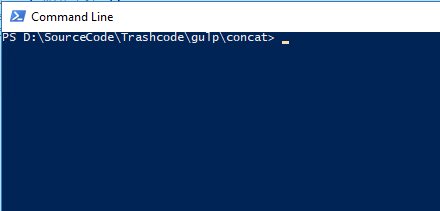
We are now ready to install gulp.   To start with we’ll create a project.  In my case I keep stuff like this in a folder called trashcode.  So we’ll create a gulp folder to hold all of the experiments with gulp and then a project in there called concat.  Like so:

pic3

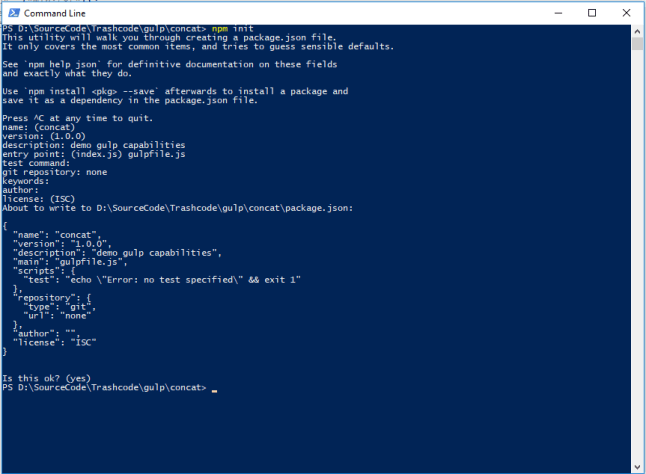
Next we initialize npm by typing “npm -init” and answer the questions:

pic4

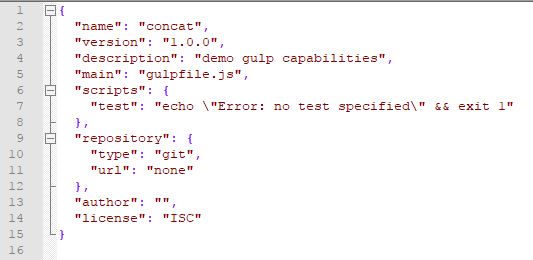
Notice that I change the entry point from “index.js” to “gulpfile.js”.  I also provided a description to avoid the warning, if you’re not OCD you can leave description empty.  You now see we have a package.json file in our directory.

pic5

You don’t need to worry about this file.  However, you’ll notice the repository settings won’t work very well.  I’m not going to bother with them for now.  Next, we’ll create a script to setup our project:

pic6

The first line installs gulp and the next two lines install two modules we’ll use in our first test.  When you run the script you’ll see a bunch of status information as the components are installed.  After it’s all done the directory will look like this:

pic7

You can explore node_modules to see what has been installed.

For our testing we’ll create additional directories and some test files:

pic8

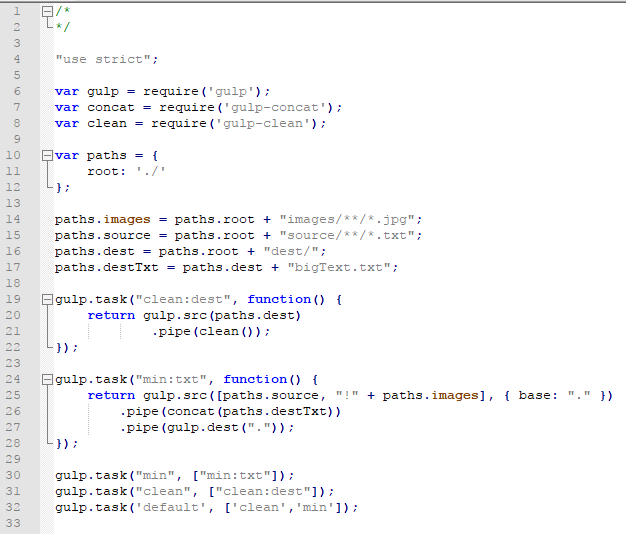
All I want is some stuff to work with and that is what testSetup.ps1 provides.  Now we will create gulpfile.js:

pic9

Here is what is going on:

Lines 6, 7, 8 tell node what packages we require and provide a short cut to access the modules.

Line 10 creates an object call paths that we will store values in.

Lines 14, 15, 16, and 17 store the paths we will work with in the paths object.

Line 19 creates a task called “clean:dest” that uses the gulp-clean module to delete files.

Line 24 creates a task called “min:txt” that uses the gulp-concat module to concatenate all the files together.

Line 30 and 31 setup tasks that can call multiple tasks.  In this case if I had also created a min:images task I would make line 30 look like:

pic10

This would cause gulp to first call the task “min:txt” and then “min:images”.

The final task “default” first calls “clean” and then calls “min”.  Clean deletes all the files in destination and min creates the new file and puts it in destination.

Now that we have our gulp file we can run it right?  In a Visual Studio project, we’d be good to go.   If you look inside node_modules in the gulp folder you’ll see “gulp.bat” and if you look at it in notepad you’ll see what is going on.  To do the same in PowerShell, just create gulp.ps1 in the project directory.

pic11

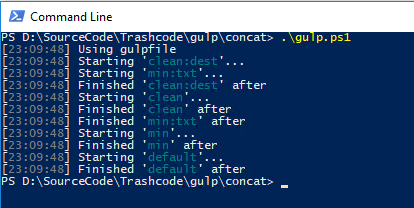
At the command line if we run .\gulp.ps1 we’ll get the following results.

pic12

Looking in our destination folder we should see bigText.txt and it should have the contents of all the other files we put in our source directory and sub-directories.

Where to now?

At this point we really haven’t done that much with Gulp, but we have a good start to play with it and learn how to work with it.  My next step will be to review the modules that are available and learn to work with them.

My goal is always to automate routine tasks and find ways to stream line workflows.  I can see Gulp fitting in with PowerShell to help me accomplish those goals.

Stuff to look at 2017-07-25

Getting started with Power Shell

I make heavy use of PowerShell in a lot of difference scenarios.  It allows me to automate work and free me so I can focus on other things.  There are other scripting languages to learn (BASH for example) but if you’re running Windows you really should know PowerShell:

Getting Started with Windows PowerShell

This is a good starting point that leads to more stuff.  Just start digging.  Your machine should have powershell so you can play along.

ASP.NET Core

I come from a Microsoft Platform background so naturally this is what I use.  The advantage that .NET Core offers me is that it runs nearly anywhere today so I can build applications for to run on iPhones, Android, Linux, iOS or even Windows.  ASP.NET is how web sites are build, ASP.NET Core is the way to build web-sites that can be hosted wherever .NET core is running.  In my case I’ll be targeting linux containers running various middleware packages (Apache and MySQL for example) that will be hosted in Docker environments (like OpenShift, Azure, AWS, etc).  In addition to learning the ASP.NET stuff, you’ll also want to learn C#.  It’s both easier and harder than JavaScript.  Here are a few starting points:

C#

Getting Started with C#

C# Fundamentals for Absolute Beginners

ASP.NET Core

Introduction to ASP.NET Core

 You should also check out the Microsoft Virtual Academy which provides a lot of free training material.  There is also Microsoft’s Channel 9 which is well worth you time.

Storage and Databases

Data has to be stored somewhere.  There are a lot of choices available.  To get things kicked off though I’m going to recommend you start off learning to use MySQL (google it yourself).  Once you’re able to work that things like MongoDB and Microsoft SQL Server will be worthwhile to look at.  You’ll also want to learn to use cloud storage like Azure Table and Blob storage.

You’ll end up learning SQL (Structured Query Language.  You can pronounce it as sequel or squeal depending upon your mood).

The Cloud

You are going to want to know how to work with cloud offerings like Microsoft’ Azure and Amazons Web Services (AWS).  Both are huge offerings with tons of features.  Additionally, you’ll want to know about Docker and OpenShift because containers are becoming a very important feature of cloud ecosystems.  You can get trail accounts for all of them and all of them offer extensive documentation and tutorials to help get you going:

Microsoft Azure

AWS

OpenShift

Regarding free trials – don’t be abusive but I recommend creating an alternate email account (use outlook.com or gmail) instead of your usual email address.  If you need more time just create a new one.

DevOps

DevOps is all the rage, but in a lot of ways it is not that big a deal.  In my opinion, it is just the natural evolution of what we do.  The goal is to shorten the time from having an idea to putting it in production.  That really is all it is about.  You’ll see terms like CI/CD thrown around (Constant Integration & Constant Delivery) but again: it’s not a big deal.  It’s just learning to use the tools to full ability.  However, there are a lot of tools out there.  Typically, I like to choose just 1 tool and get very good at it.  In many cases though you’ll find that there are many tools that do that same thing slightly differently and in some cases, you HAVE to use one particular tool because another tool you are using depends upon it.  For instance: OpenShift depends upon Ansible for its deployment and maintenance.  Ansible is like Chef the tool I’d actually recommend you learn to use.  As a result: you will end up learning several different tools.  This is sort of a catch all.  But my top tools are:

You’re also going to want to learn Linux in addition to Windows.  The entire ecosystem is changing and being just a Windows developer or just  Linux developer doesn’t really work anymore.  You want to be able to target anything and handle any situation.

So this should keep you busy for the day.  I’ll have more stuff tomorrow.  Enjoy

Better living through PowerShell – Archive old pictures

I’m lazy, I hate having to do the same thing twice.  It’s boring.  If there is something that needs to be done regularly I want it automated.  That’s why I became a software developer.

Naturally: the cobbler’s kids have no shoes.  I’m kept so busy making things better for my clients that I forget to take time to make things better for myself.  Time to start changing that

In this case, I have a fairly simple problem: I take lots of pictures on my cell phone.  My cell phone uploads the pictures to my OneDrive.  I use OneDrive on all my machines.  My Surface has a 256Gb SSD in it.  There are about 127Gb of pictures on my OneDrive.  See the issue?

My main workstation has a 4Tb external hard drive where I kept ‘stuff’ and it has a media folder where old pictures and videos are stored.

The requirements seem easy:

  • all pictures in my Camera Roll folder on OneDrive need to be moved to my Camera Roll folder in my media archive.
  • I also want video files (MP4) that are more than 5 days old to move as well.
  • I’d also like to keep a log so I can tell that this is happening.

The way I chose to implement this (the title should get it away) was to write a very simple PowerShell script and then schedule it using Windows Scheduler.

Here is the script:

script

While this is easy, I had to look up this stuff so I don’t feel bad explaining it in detail.  I’ll break it down step by step.

Before I get in to it though I want to point out that you can type each of the commands above in to the PowerShell command line to see what they do.  You can even change things around to see what happens.  Or you can load the script in to the PowerShell ISE and step through it with a debugger.

The first part of the script just counts how many files are going to be moved.

The very first line (after the comment) is just giving me a short cut to where I’m going to write my logging information.

Next get-childitem gets all the JPEGs in my camera roll.  Get-childitem is also aliased as the old DOS “DIR” command or UNIX ‘ls’ command if you don’t want to type all of those letter.   The list of files is passed on to where-object using a pipe command (the ‘|’ thing).

The where-object filters out pictures that are less than 30 days old and then passes them, or pipes them on to measure-object.  Measure-object counts and measures stuff.  In this case we just want the count.  Notice that I have all the commands wrapped inside of parentheses?  This allows us to get just the count output from the measure-object command and assign it to our $jpegCount variable.

line1

The exact same process is used to get a count of video files in my camera roll.  The ony differences are that we are looking mp4 files and we only want files more than 5 days old.

Next I make a custom date string by getting today’s date with get-date and passing it to ToString with a custom format string.  I like formatting dates from greatest precedence to least precedence.  It makes more sense.  You don’t write Fifty five dollars two hundred do you?  Then why do we write dates as April 27, 2017?

With our nicely formatted date and file counts we now update the log file with the information about how many files are about to be moved.  Add-Content appends whatever you provide to the file you specify.

line 2

With the log file updated we’re now ready to move the files around.  Moving the pictures looks just like getting the count.  The differences are that we are not assigning the results to a variable so we don’t need the parentheses and we pass the filtered list of files to move-item instead of measure-object.

line 3

Moving the videos is the same process with the differences as explained before.

We now have our script that does the work.  The last step is that we need to schedule the script to be run once a day.  To do this run Task Scheduler as the administrator and create a new task.  Here is how I do it:

  1. Window+Q to bring up Cortana and search for “Task Scheduler”

cortana

  1. Right click on “Task Scheduler” and choose “Run as Administrator”
  2. In Task Scheduler click on “Create Basic Task”

create basic task

  1. Give it a name and click “Next”

cbt1

  1. Set the trigger to daily and click “Next”

cbt2

  1. Select a time for the job to run. I like to do things at 1am.  Click “Next”

cbt3

  1. Select “Start a program” and click “Next”

cbt4

  1. Now we enter our actual program. In this case you can just type the entire command line in the main box.  The command you want to type is:

PowerShell -noninteractive -file C:\Users\your user name\Documents\WindowsPowerShell\MoveOneDrivePictures.ps1

With obvious adjustments.  When you’re done click “Next”

cbt5

  1. You’ll be presented with a confirmation message b/c Task Scheduler is going to split things up for you. Just say “Yes”

cbt6

  1. You’ll be presented with a summary of what you want scheduled. If you’re happy just click “Finish” and you’re done.

cbt7

You can test our your job by right clicking on it and choosing “Run”.  Just go see if the log file was created.  If it was your job ran.  Otherwise you have some debugging to do.

Overall this is not a horribly complex script or task, but it opens the door to other things.  We’ll get in to those things soon.